
How much do you really know about Sketch Mode in SOLIDWORKS? Whether you’re a beginner or a pro designer, understanding the different sketching modes can make your workflow faster and more efficient. In SOLIDWORKS, sketching comes in two main flavors: the standard (2D) sketch mode and the 3D sketch mode. Each has its strengths and knowing when to use which can save you a ton of time. Let’s dive in and explore the differences.
Normal Sketch & 3D Sketch
Normal Sketch Mode is the most used sketching method in SOLIDWORKS. This is because most product designs are relatively small and simple, often built with extrude features. In this mode, the user must preselect a sketch plane before starting the profile. Since many features rely on a solid, planar foundation, normal sketch mode is usually the best choice over 3D sketch mode for creating base designs.
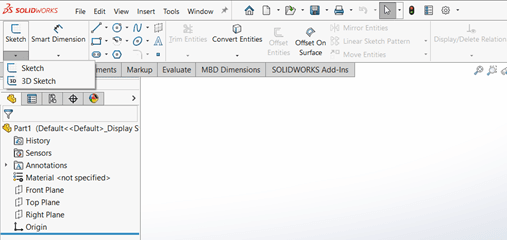
Two different sketch modes can be found in SOLIDWORKS sketch feature.
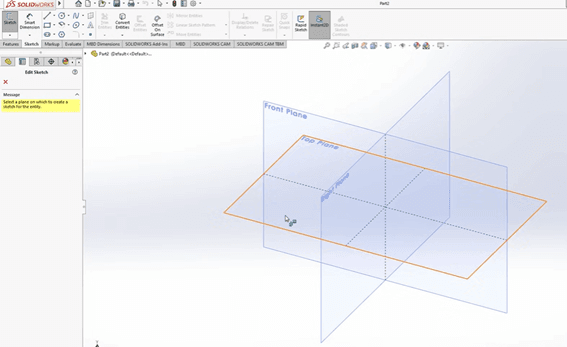
Normal sketch mode requires you to pre-select the sketch plane, thus users can focus on sketching the entity on that particular plane.
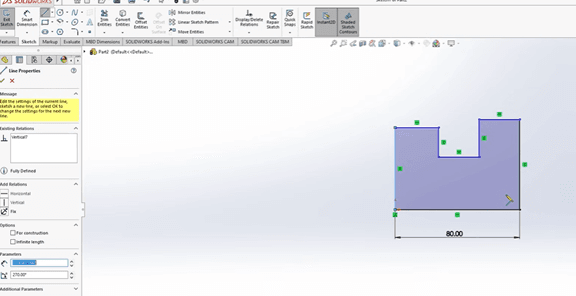
Normally, users are recommended to have a parallel screen with the sketch plane.
3D sketch mode, can be found under the sketch mode, and the additional small arrow below. 3d sketch mode, allow users to draw line entity and turn the drawing plane or drawing axis with the tab key. With this gimmick, the user can easily sketch the entity line
3D sketch mode can be found under the sketch menu, using the additional small arrow below. 3D sketch mode allows users to draw line entities and change the drawing plane or axis using the Tab key. With this feature, users can easily sketch entity lines.
Normally, 3D sketch lines are more suitable for piping design. Instead of drawing the line part by part, using a 3D sketch allows users to create the entire piping path in a single sketch. The piping feature works similarly to the loft feature, where users can define the piping standard and directly generate the whole pipe based on the 3D sketch line.
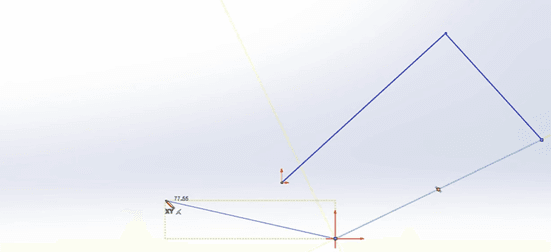
3D sketch mode allows users to continue sketching while changing the sketch plane by tapping the Tab key.
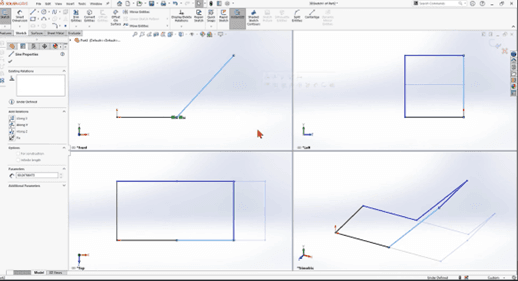
As you can see, the sketch appears differently in isometric view compared to the standard three views in the SOLIDWORKS graphics area.
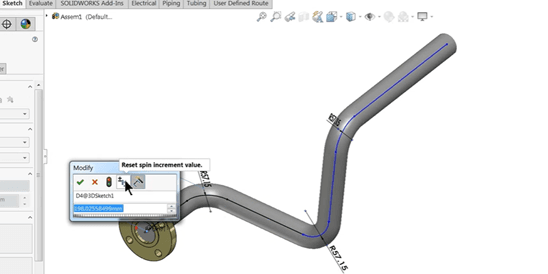
3D sketch mode is suitable for tubing, piping, and flexible tubing design in SOLIDWORKS, where users can easily change the direction of the entity line.
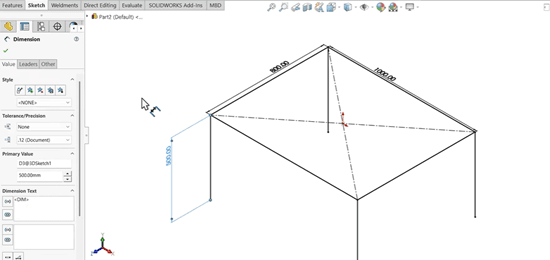
In some cases, you can choose to use either 3D sketch or normal sketch for the weldment feature.
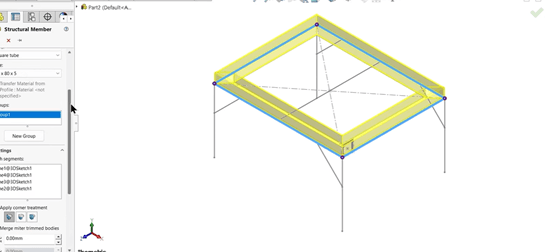
Weldment can select dedicated entities that are connected to each other on the same parallel plane. The turning of the entity in the 3D sketch will not affect the weldment feature.
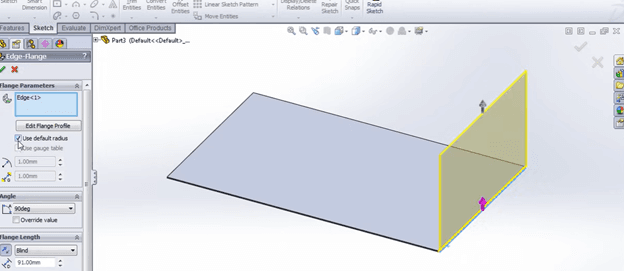
However, for sheet metal, the base of the plate must be a uniform plate. To meet this requirement, it is recommended to use the normal sketch mode.
You can discover more SOLIDWORKS tips and tricks by joining our workshops and webinars. To stay updated on upcoming sessions and new features, follow us on our social media pages, we always welcome your participation. For more information or any questions, feel free to reach out:
Email: sales@cadcam.com.my
WhatsApp: https://wa.link/0jj9tc
See you in the next blog post!
–Chai Chia Hin, Henry
Senior Solution Advisor